The Numbers Game
sensemake.uk/numgame
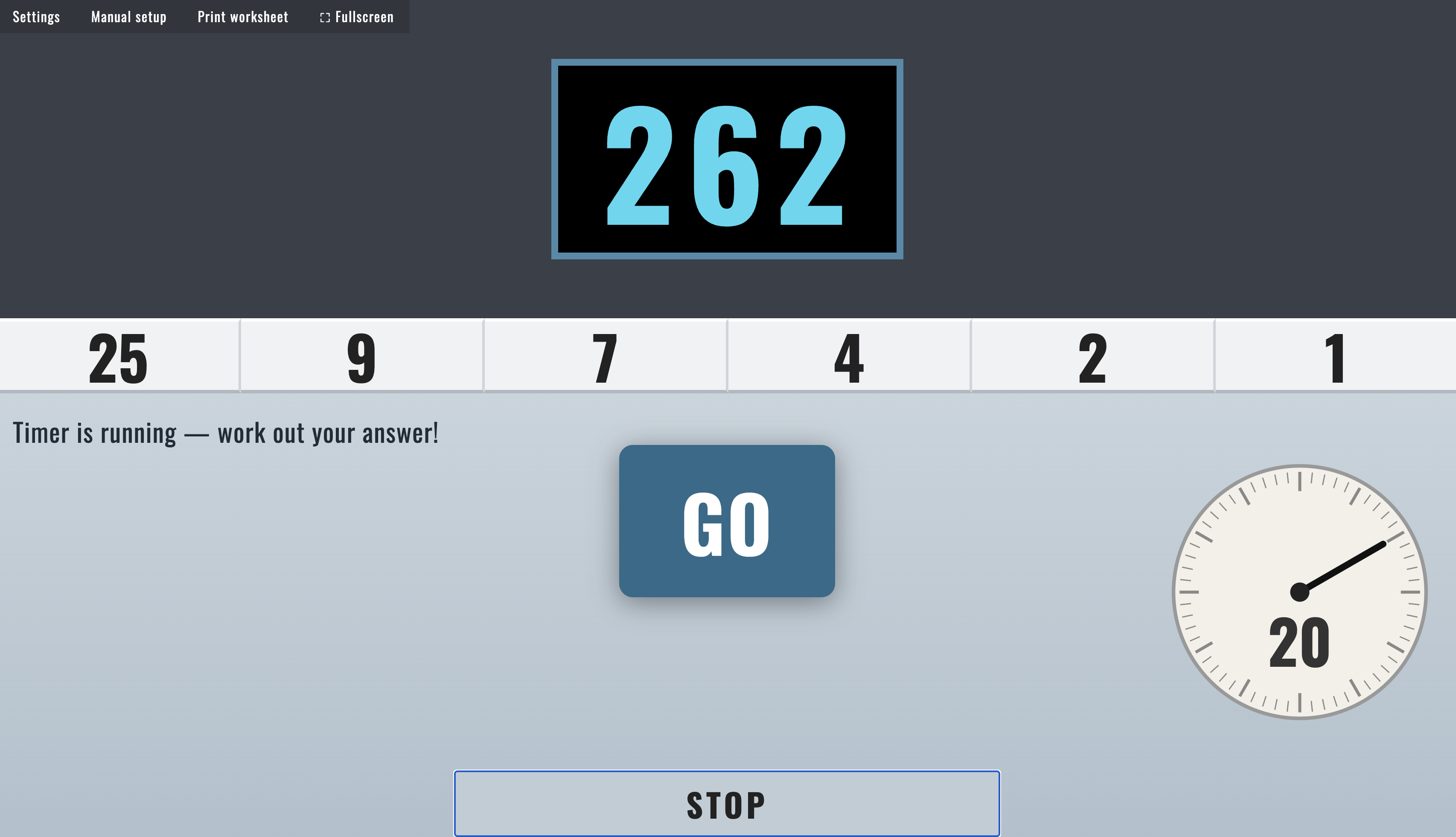
The Numbers Game is an interactive classroom tool based on the well-known format from the TV show Countdown. Six numbers are drawn from two pools, small numbers (1–10, with each value appearing twice in the pool) and large numbers (25, 50, 75, 100). Pupils have a set time to reach a three-digit target using any combination of the four operations. The tool is designed for regular classroom use: numbers and targets are generated instantly, the timer is prominent and configurable, and a full solution engine means the teacher is never caught out by a puzzle with no answer.
Beyond the familiar game format, the tool includes a step-by-step walkthrough of any solution, an interactive validation tool for checking pupils' methods, and a printable worksheet generator. This makes it useful across a range of lesson contexts, from a quick starter to a more extended investigation into priority of operations.
How the tool works
Choosing numbers: On the selection screen, pupils (or the teacher) choose how many large numbers to include. The small numbers are drawn at random from the pool; the target is generated randomly within the configured range. Numbers can also be set manually via Manual setup in the toolbar.
The number pools: Small numbers are drawn from 1–10, with each value appearing twice in the pool, matching the original TV format. Large numbers are the set {25, 50, 75, 100}. This means, for example, that two 3s could appear, but not two 25s.
After the timer: The Show Answer(s) button reveals how many solutions exist (the engine searches all valid combinations) and lists up to 120 of them. If the target is unreachable, the nearest achievable value is shown instead. Clicking any listed solution opens the Walkthrough for that solution directly.
Getting started
- Configure the game in Settings if needed. Set the time limit, difficulty, and start mode.
- Click Play (or use Manual setup to fix specific numbers and a target).
- Pupils work to reach the target during the countdown.
- Use Show Answer(s) to reveal solutions, Validate to check a pupil's method, or Walkthrough to step through a solution with the class.
- Click Play Again to generate a new puzzle instantly.
Start modes
Four start modes are available from Settings, controlling what happens between selecting numbers and the timer beginning:
| Mode | Behaviour |
|---|---|
| Instant | The timer starts immediately once numbers are revealed. |
| Review | Numbers are shown briefly; any key press or tap starts the timer (also auto-starts after 1.5 seconds). |
| Countdown | A 3–2–1–GO! overlay plays before the timer begins. |
| Manual | A GO button appears; the teacher starts the timer when ready. |
Review mode is the default and suits most classroom uses. It gives pupils a moment to see the numbers before the clock starts, without requiring a deliberate teacher action each round. Manual mode is useful when the teacher wants to talk through the numbers or set up a discussion before starting.
Difficulty
Three difficulty presets control the target range:
- Easy - target between 101 and 500; more achievable for pupils new to the game.
- Medium - target between 101 and 999; the standard range matching the TV format.
- Hard - target between 500 and 999; larger targets that tend to require more steps.
A Custom option allows a specific minimum and maximum to be set manually.
Validate
The Validate tool lets working be entered step by step for the teacher (or the class) to check. After the timer, opening Validate presents the six number tiles as interactive buttons. Pupils build their calculation one line at a time: tap a number, tap an operator, tap another number, then press = to confirm the line. The result becomes available as a new tile for the next step.
The tool enforces the rules automatically: each number can only be used once, intermediate results must be positive integers, and only valid arithmetic is accepted. If a step produces an error, it is flagged immediately. A correct solution that reaches the target triggers a confirmation message.
This makes it straightforward to work through a pupil's verbal method in front of the class without having to track the arithmetic yourself.
Walkthrough
The Walkthrough opens after clicking any solution in the answer list, or via the Walkthrough button (which opens the shortest solution by default, marked with ⚡).
Solutions can be stepped through one calculation at a time using the Next Step button. Two display layouts are available, toggled within the Walkthrough panel:
- Layout B (default) - each step is shown as a separate line of arithmetic (e.g., \(7 \times 50 = 350\), \(350 + 6 = 356\)), building up line by line. This mirrors the written working style most pupils use.
- Layout A - the full expression is shown from the start with brackets, and terms are revealed progressively as each step is confirmed. This makes the nested structure of the calculation explicit and is useful for discussing priority of operations.
The panel also shows the total number of solutions found and allows navigation between them with Previous and Next arrows. The shortest solution (fewest steps) is identified with ⚡ and can be jumped to directly.
Print worksheet
Print worksheet in the toolbar generates a ready-to-use paper version of the game. Options include:
- Number of puzzles - how many puzzle cards to include on the sheet.
- Difficulty - Easy, Medium, or Hard (controls the target range for generated puzzles).
- Show working lines - adds blank ruled lines beneath each puzzle for pupils to write their calculations.
- Show answers - includes the first valid solution beneath each puzzle; the engine solves each generated puzzle before printing.
- Title - customisable heading for the sheet.
Puzzles are generated fresh each time, so repeated prints give different sets.
Settings
Additional options in the Settings menu:
- Time limit - set the countdown duration in seconds.
- Sound effects - enable or disable audio cues (number reveals, countdown ticks, timer end, correct solution).
- Theme - five visual themes: Steel & Ice (default), Copper, Midnight Studio, Chalkboard, and Ember.
- Walkthrough layout - choose between Layout A and Layout B as the default.
- Start mode - see Start modes above.
Classroom uses
Regular starter: The game works well as a consistent lesson opener. Because setup is instant and Play Again resets everything in one click, it can be run as a brief warm-up without taking over the lesson.
Whole-class discussion: After the timer, use Show Answer(s) to show the class how many solutions exist. This is often surprising. A puzzle with 200+ solutions prompts questions about why some targets are easier to reach than others. A puzzle with very few (or zero) solutions is equally interesting.
Checking methods with Validate: Ask a pupil to describe their method verbally while you enter it step by step in the Validate tool, projected for the class. The tool confirms or rejects each step, making the checking process transparent and removing ambiguity about whether the arithmetic is correct.
Priority of operations: Use Layout A in the Walkthrough to discuss why brackets are needed in expressions like \((7 \times (50 + 25)) - (6 + 5)\). The progressive reveal of each sub-expression makes it natural to ask: what gets calculated first, and why?
Associativity: The way solutions are constructed, combining two numbers at a time, then combining results, provides a concrete context for discussing associativity. Two different solution paths that reach the same target illustrate that the order of grouping can vary without changing the outcome.
Discussion questions:
- How many of the six numbers did you use? Could you have used fewer?
- The tool found 220 solutions for this puzzle. Why do so many work?
- Two different solutions both reach the target. Are they really different, or are they the same calculation in a different order?
- If the target were one higher, how many solutions would there be?
Pedagogical note
The Numbers Game is a rare classroom activity where constraint drives mathematical thinking. Pupils cannot choose their numbers freely; they must work with what they have, which pushes them to explore combinations they would not otherwise consider. The solution engine makes it possible to respond honestly to pupils' questions ("Is there a way to do it without the 50?") rather than guessing. The Walkthrough and Validate features close the loop between the activity and the mathematics: solutions become objects to examine, not just answers to record.